Transforming Your MacBook Video Calls: A Comprehensive Guide to Using Your iPhone as a High-Resolution Webcam via Apple Continuity Camera

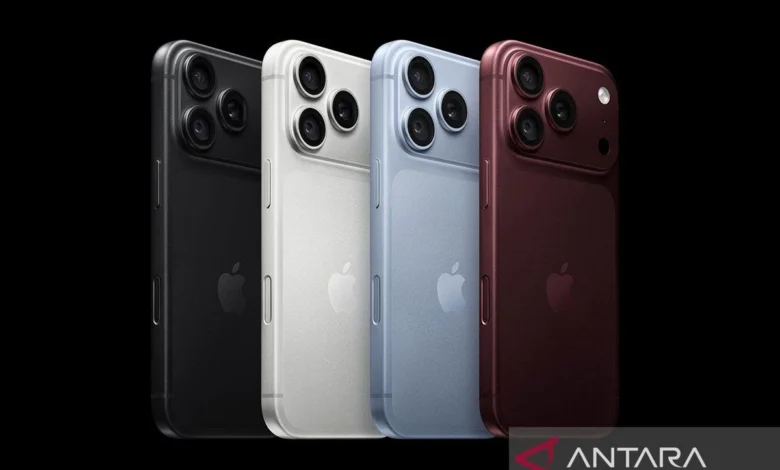
Jakarta – While the built-in cameras on modern MacBooks are generally adequate for routine video conferencing and casual virtual catch-ups, professionals, educators, and content creators often demand a higher tier of visual fidelity. For users embedded within the Apple ecosystem, achieving DSLR-quality video output during online meetings does not require purchasing an expensive external USB webcam. Instead, Apple has engineered a natively integrated ecosystem feature known as Continuity Camera, which bridges the gap between mobile and desktop computing by transforming an everyday iPhone into a powerful, high-resolution webcam and studio-grade microphone for any compatible Mac.
This feature represents a significant leap forward in remote communication technology, leveraging the advanced computational photography capabilities, larger sensor sizes, and superior optics found in the rear camera systems of modern iPhones. Without the need for third-party driver installations, cumbersome software bridges, or paid utility apps, users can effortlessly stream crisp, high-definition video wirelessly or via a wired USB connection. As hybrid work models and virtual collaboration continue to anchor themselves as permanent fixtures of the global workforce, maximizing existing hardware assets has become an economic and ecological priority for tech consumers.
Understanding the Mechanics and System Requirements
The Continuity Camera feature is not merely a screen-mirroring trick; it is a deeply integrated protocol within macOS and iOS designed to optimize sensor performance dynamically. By tapping into the rear-facing camera array of the iPhone, users instantly gain access to flexible framing angles, superior low-light performance, and advanced software-driven effects that significantly outperform standard laptop optics. However, to harness this capability seamlessly, users must ensure their hardware and software infrastructure meets Apple’s strict compatibility guidelines.
To successfully establish a Continuity Camera connection, the host iPhone must be running iOS 16 or any subsequent operating system version. Hardware-wise, the feature is supported on iPhone XR and all newer models, encompassing a wide range of devices still actively used by millions worldwide. Concurrently, the destination Mac—whether it be a MacBook Air, MacBook Pro, iMac, Mac mini, or Mac Studio—must operate on macOS Ventura 13 or a later iteration.
Beyond software versions, security and proximity protocols play a foundational role in establishing the connection. Both the iPhone and the Mac must be signed into the exact same Apple Account (formerly known Apple ID) and must have two-factor authentication enabled for account security. For wireless operation, both devices require Wi-Fi and Bluetooth to be toggled on, and they must be positioned in close physical proximity to one another. If these foundational parameters are met, the operating system recognizes the iPhone as an eligible video and audio input device natively.
Step-by-Step Implementation Guide
Configuring and operating Continuity Camera involves a straightforward, intuitive procedure designed for both tech-savvy professionals and casual users alike.
Step One: Verifying and Activating System Settings
Before attempting to launch a video call, users must verify that the Continuity Camera feature is enabled on their mobile device. On the iPhone, navigate to the Settings application, tap on General, and locate the AirPlay & Continuity (or AirPlay & Handoff, depending on the specific iOS sub-version). Ensure that the Continuity Camera toggle is switched to the "On" position. In most instances, this setting is enabled by default upon updating the device.
Step Two: Securing Proper Physical Placement
Because the feature relies on the iPhone’s rear camera array—which offers markedly higher resolution and sensor depth than front-facing selfie cameras—the phone cannot simply rest flat on a desk. Users must employ a stable mounting accessory, such as specialized MagSafe clips designed to latch securely onto the top lid of a MacBook display. When mounting, the iPhone must be positioned horizontally (in landscape orientation) with the rear cameras facing the user. This horizontal alignment ensures that video conferencing applications can automatically detect and crop the feed correctly without manual intervention.
Step Three: Selecting the iPhone Input in Video Applications
Once the iPhone is securely mounted and powered on, the user can open any application that utilizes a webcam, such as FaceTime, Zoom, Microsoft Teams, or Google Meet. Within the application’s settings—typically found under a dedicated "Video" or "Camera" menu—the user simply selects the iPhone from the list of available video input sources. Instantly, the video feed transitions from the MacBook’s built-in camera to the superior optics of the iPhone.
Step Four: Choosing Between Wireless and Wired Modes
One of the most praised aspects of Continuity Camera is its wireless flexibility. Users are liberated from desk clutter, as the connection operates smoothly over local Wi-Fi and Bluetooth. Nevertheless, prolonged streaming sessions can draw heavily on the iPhone’s battery reserves. To mitigate power drain, users can connect the iPhone to the MacBook using a standard USB-C or Lightning charging cable. Utilizing a wired connection also serves as a reliable troubleshooting fallback if local wireless interference compromises the video stream’s stability.
Advanced Studio Effects and Software Capabilities
Beyond simply delivering a sharper image, Apple has integrated a suite of powerful computational photography tools into the Continuity Camera framework. These software enhancements allow users to manipulate their visual environment dynamically during live calls, effectively turning a home office into a professional broadcast studio.
Among the standout tools is Center Stage, a feature that utilizes machine learning to automatically pan and crop the video frame, keeping the user perfectly centered even as they move around their workspace. This is particularly useful for dynamic presentations or instructional sessions where the speaker is not strictly stationary.
Another powerful addition is Portrait Mode, which artificially blurs the background behind the user, ensuring that privacy is maintained and that the viewer’s focus remains squarely on the subject. For environments with challenging lighting, Studio Light dynamically brightens the user’s face while simultaneously dimming harsh background lighting, offering a balanced exposure without requiring external ring lights.
Perhaps one of the most innovative utilities is Desk View. By utilizing the ultra-wide lens of the iPhone, Desk View simultaneously displays the user’s face and an overhead-style view of their desk surface. This feature is invaluable for professionals, educators, and creators who need to demonstrate physical documents, sketch drawings, or showcase hardware products during a live virtual meeting without repositioning the primary camera hardware.
Troubleshooting and Ecosystem Implications
Despite the robust engineering behind Continuity Camera, users occasionally encounter connectivity hiccups where the iPhone fails to appear as an available camera option on their Mac. Industry IT support specialists recommend a systematic troubleshooting checklist in such scenarios:
- Verify that both devices are connected to the exact same Wi-Fi network and that Bluetooth is active on both units.
- Confirm that both the iPhone and the Mac are logged into the same Apple Account.
- Ensure that neither device has pending software updates; keeping both iOS and macOS updated to the latest stable release prevents protocol mismatches.
- If wireless discovery fails entirely, bridging the devices physically via a USB cable forces a secure handshake and often resolves handshake timeouts.
The mainstream adoption of features like Continuity Camera reflects a broader industry trend toward hardware convergence and ecosystem synergy. By maximizing the utility of devices consumers already own—rather than forcing them to purchase redundant standalone peripherals—tech giants are reducing electronic waste while delivering premium, high-value user experiences. As remote work and digital communication continue to evolve, software-driven hardware integration will undoubtedly remain a cornerstone of modern consumer electronics strategy.
Related posts: