Collapse of Newly Completed Hongqi Bridge in Sichuan Raises Questions Over Infrastructure Safety and Geological Stability in Southwest China

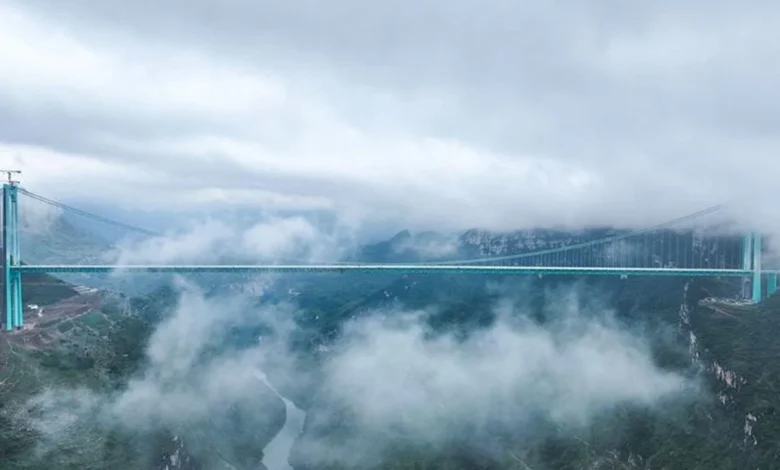
The dramatic collapse of the newly inaugurated Hongqi Bridge in Sichuan Province has sent shockwaves through China’s engineering community and social media platforms, highlighting the persistent challenges of maintaining large-scale infrastructure in the country’s geologically volatile southwestern regions. The incident, which occurred on the afternoon of Tuesday, November 11, involved a massive structure spanning 758 meters that served as a critical link in the regional transport network. While the destruction of the bridge represents a significant economic loss and a major disruption to the National Highway G317, authorities confirmed that a catastrophe was narrowly avoided due to a timely intervention that prevented any loss of life.
The collapse was captured in several videos that quickly went viral on Chinese social media platforms like Weibo and Douyin. The footage depicted a terrifying scene as large sections of the bridge, known colloquially as the "Bridge Above the Clouds," plummeted into the valley below. The impact generated a deafening roar that echoed through the canyon, followed by a massive plume of thick grey dust and debris that obscured the surrounding mountain slopes. Preliminary reports from local authorities in the Aba Tibetan and Qiang Autonomous Prefecture suggest that the collapse was not a result of a direct structural failure of the bridge itself, but rather a consequence of the surrounding environment’s instability.
A Timely Intervention Prevents Tragedy
Despite the scale of the destruction, no casualties were reported. This fortunate outcome was the result of proactive monitoring by local transport and geological departments. On the afternoon of Monday, November 10—less than 24 hours before the final collapse—inspectors identified alarming signs of geological distress. Significant cracks had begun to appear on the mountain slopes supporting the bridge’s foundations, as well as on the access roads leading to the structure.
Recognizing the imminent danger, authorities immediately ordered the total closure of the Hongqi Bridge to all vehicular and pedestrian traffic. Emergency response teams were deployed to establish cordons, and traffic was diverted to alternative, albeit much longer, mountain routes. This swift decision-making has been credited with saving dozens, if not hundreds, of lives, as the G317 highway is a major artery frequently used by heavy logistics trucks and tourists traveling between central China and the Tibet Autonomous Region.
Technical Specifications and Economic Impact
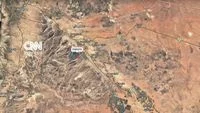
The Hongqi Bridge was considered a significant engineering feat, even by the high standards of China’s "bridge-building boom." Located in Maerkang (also known as Barkham in Tibetan), the bridge stood approximately 625 meters above the canyon floor. Its most striking feature was its massive support pillars, which reached heights of up to 172 meters. The structure was a vital component of the G317 National Highway expansion, designed to facilitate faster travel between Maerkang County and Rangtang (Zamthang) County.
Constructed by the Sichuan Road and Bridge Group—a major state-owned enterprise with extensive experience in high-altitude projects—the bridge represented an investment of approximately 300 million yuan (roughly 41 million USD or 700 billion IDR). Construction was completed in a relatively short timeframe of 19 months, a testament to the rapid infrastructure development pace that has become a hallmark of the Sichuan province. The bridge had only been fully operational since April 2025, meaning it had been in service for only seven months before its destruction.
The loss of the bridge is expected to have a ripple effect on the local economy. The G317 is one of two primary land routes connecting the Sichuan basin with the Tibetan plateau. With this section of the highway severed, the transport of essential goods, construction materials for other regional projects, and the local tourism industry will face significant delays and increased costs.
Geological Instability and the Landslide Factor
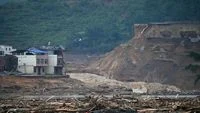
Sichuan Province is home to some of the most challenging terrain on earth. The Hongqi Bridge was situated in a region characterized by steep canyons, fragile soil compositions, and high seismic activity. According to official reports from the Chinese government and local geological bureaus, the collapse was triggered by a massive landslide. The mountain slopes in this part of the Aba Prefecture are notoriously unstable, often affected by heavy seasonal rains, freeze-thaw cycles, and the inherent tectonic pressures of the Longmenshan Fault zone.
The region remains deeply scarred by the memory of the 2008 Wenchuan earthquake, a magnitude 7.9 disaster that killed nearly 70,000 people and caused widespread geological displacement. Experts note that even decades after such an event, the internal integrity of mountain slopes can remain compromised, making them susceptible to sudden failure. In the case of the Hongqi Bridge, it appears that a large section of the mountainside supporting one of the primary approach spans gave way, dragging the bridge structure down with it.
The Shadow of the Shuangjiangkou Hydropower Project
Adding a layer of complexity to the incident is the bridge’s proximity to the Shuangjiangkou Hydropower Station. Currently under construction, the Shuangjiangkou dam is set to be one of the highest dams in the world, with a structure height exceeding 300 meters. The project involves massive excavations and the eventual creation of a vast reservoir that will significantly alter the local hydrological and geological environment.
According to reports from technical analysts and regional news outlets, such as Taiwan’s CTWant, there are growing calls for an investigation into whether the massive construction activities associated with the dam contributed to the slope instability. Large-scale dam projects can lead to "reservoir-induced seismicity" or changes in groundwater pressure that weaken the "toe" of mountain slopes. While no direct link has been established between the dam and the bridge collapse, engineering experts argue that the cumulative stress of heavy machinery, blasting, and environmental modification in a concentrated area must be factored into future safety audits.
Rapid Construction and Long-term Durability
The 19-month construction period for a bridge of this magnitude has also come under scrutiny. While China is globally renowned for its ability to build complex infrastructure at unprecedented speeds, the Hongqi Bridge incident has reignited a debate regarding the balance between speed and long-term geological resilience.
Engineering critics suggest that in high-altitude, seismically active zones, the standard "rapid-build" models may not allow for sufficient observation of how a structure settles into its environment over several seasonal cycles. The fact that the bridge collapsed so soon after its opening suggests that the initial geological surveys may have underestimated the volatility of the specific slope where the bridge was anchored.
Official Responses and Future Outlook
In the wake of the collapse, the Sichuan provincial government has announced a comprehensive review of all high-pier bridges and mountain highway projects currently operational or under construction in the Aba and Ganzi prefectures. The Sichuan Road and Bridge Group, the firm responsible for the Hongqi Bridge, has dispatched a team of senior engineers to the site to assist in the investigation and to determine if any part of the remaining structure can be salvaged.
"Our priority was the safety of the public, which is why the immediate closure was enacted," a spokesperson for the local transport bureau stated. "However, the loss of this infrastructure is a setback. We are now focused on conducting a thorough geological reassessment of the entire G317 corridor to ensure that such an event does not happen elsewhere."
As of now, there is no estimated timeline for the reconstruction of the Hongqi Bridge or the reopening of that specific section of the G317 highway. The technical challenges are immense; engineers must not only rebuild the bridge but also stabilize an entire mountainside that has proven to be mobile. This may involve the use of advanced "soil nailing," massive retaining walls, or even a complete rerouting of the highway to a more stable geological shelf.
Broader Implications for China’s Infrastructure Strategy
The collapse of the Hongqi Bridge serves as a cautionary tale for infrastructure development in mountainous regions worldwide. As China continues to push its "Western Development" strategy, building bridges and tunnels through some of the most difficult terrain on the planet, the incident underscores the reality that nature often holds the final say.
For the residents of Maerkang and the transport companies that rely on the G317, the collapse is a reminder of the fragility of modern connectivity in the face of geological forces. The event will likely lead to stricter regulations regarding geological surveying and could potentially slow down the approval process for similar mega-projects in the Himalayas and the Hengduan Mountains.
In the international context, the incident will be closely watched by engineering firms and geologists. The ability to predict and prevent such collapses in real-time—as the Chinese authorities successfully did by closing the bridge—is a victory for monitoring technology. However, the ultimate failure of the multi-million dollar structure highlights the need for a more holistic approach to infrastructure planning, one that views a bridge not just as a piece of steel and concrete, but as a dynamic component of an ever-changing landscape.
As the dust settles in the Maerkang canyon, the focus shifts from emergency response to a long-term scientific inquiry. The lessons learned from the Hongqi Bridge will be vital in ensuring that the "Bridges Above the Clouds" of the future are built to withstand not just the weight of traffic, but the shifting earth beneath them.
Related posts: