

Tips to make your ecommerce site more accessible is a guide to improving your online store for everyone. This isn’t just about ticking boxes; it’s about creating a welcoming and inclusive experience for all customers, regardless of their abilities.
From website structure to mobile usability, we’ll explore key strategies for designing an accessible e-commerce platform. We’ll cover everything from clear navigation and descriptive text to effective image optimization and user-friendly forms. This isn’t just a list of best practices; it’s a roadmap to creating a more inclusive and profitable online business.
Website Structure and Navigation
Creating an accessible e-commerce website requires careful consideration of how users with disabilities interact with the site. A well-structured site, with intuitive navigation, can significantly improve the shopping experience for everyone. This involves more than just meeting technical standards; it’s about creating a truly inclusive and user-friendly environment.Effective website navigation is crucial for user experience, especially for those with visual, cognitive, or motor impairments.
Clear and consistent navigation helps users quickly locate desired products, information, and functionalities, enhancing their overall satisfaction and making the shopping process more efficient.
Website Structure for Accessibility
A well-structured e-commerce website prioritizes a logical flow of information. This includes a clear hierarchy of pages, with easily navigable categories and subcategories. Users with disabilities often rely on predictable patterns and structures to understand and use the website effectively. The structure should be hierarchical, allowing users to easily find what they need. A common structure includes a homepage, product pages, category pages, a cart, checkout, and contact information.
Each section should be easily accessible from other parts of the site, making the entire experience seamless.
Navigation System Design
A user-friendly navigation system should be consistent throughout the website. Consistent use of menus, buttons, and other navigational elements makes it easy for users to anticipate where they are and where they can go next. Using a consistent color scheme for links and buttons, as well as clear visual cues for active or selected items, can also greatly aid navigation.
For example, use contrasting colors for links to improve readability for users with low vision.
Comparison of Navigation Methods
| Navigation Method | Accessibility Considerations |
|---|---|
| Text Links | Easy to read and understand, but can be less visually engaging for some users. Use descriptive text for the links. |
| Breadcrumbs | Provides a visual trail of the user’s location within the site. Crucial for users with cognitive disabilities. |
| Sitemaps | Provides a complete overview of the website’s structure. Useful for users with visual or cognitive impairments to understand the site’s layout. |
Descriptive Link Text
Using descriptive link text is critical for accessibility. Links should accurately reflect the page’s content to improve comprehension for users with cognitive impairments. For example, instead of “Click here,” use “View product details.” Descriptive text helps users understand where a link will take them without needing to hover over or click on it. Avoid generic phrases or vague descriptions.
Clear and concise text ensures everyone can navigate the website with ease.
Effective and Ineffective Navigation Design Examples
An effective navigation example uses clear labels, logical categories, and consistent formatting. It would use a multi-level menu system that allows easy access to different product categories, with descriptive links. An example of an ineffective navigation design might use confusing labels, an illogical category structure, and inconsistent formatting. It would lead to users getting lost or frustrated trying to find what they need.
An effective design will make finding desired products easy and enjoyable, while an ineffective design will frustrate users and potentially discourage them from making purchases.
Content Accessibility: Tips To Make Your Ecommerce Site More Accessible
Creating an accessible e-commerce site means ensuring all users, regardless of ability, can easily find and understand information about your products. This includes individuals with visual impairments, auditory processing differences, motor limitations, and cognitive variations. Accessible content enhances the shopping experience for everyone, improving user satisfaction and ultimately driving sales.Product descriptions are a critical element of accessibility. Clear, concise language, combined with proper use of alternative text, empowers users to grasp the features and benefits of your products, even if they cannot visually perceive them.
This not only improves user experience for individuals with disabilities, but also enhances the understanding of all users, making your website more inclusive and user-friendly.
Strategies for Accessible Product Descriptions
Well-written product descriptions are essential for communicating product details effectively. They should be easy to read, understand, and navigate. Using clear and concise language avoids jargon or technical terms that may not be universally understood. Include detailed descriptions of product features and benefits, but avoid overly complex sentences or long paragraphs.
Incorporating Alternative Text for Images and Videos
Alternative text (alt text) is crucial for describing images and videos to screen readers. This allows users with visual impairments to understand the content of the media. Alt text should be concise, descriptive, and accurate, accurately reflecting the visual content. Avoid using generic phrases like “image of a product.” Instead, focus on specific details, such as “a red, leather messenger bag.” For videos, alt text should describe the general content of the video, like “video tutorial on how to assemble a desk.”
Best Practices for Visually Impaired Users
| Best Practice | Explanation |
|---|---|
| Use descriptive language | Describe the product’s features and benefits in detail, but keep it concise and clear. Avoid vague terms. |
| Provide multiple formats | Offer product descriptions in various formats like text, audio, or video, catering to different learning styles. |
| Ensure color contrast | Maintain sufficient color contrast between text and background to ensure readability for users with visual impairments. |
| Use headings and subheadings | Organize the description using clear headings and subheadings to improve navigation and comprehension. |
| Include detailed specifications | Provide detailed specifications, dimensions, materials, and other relevant information. |
Examples of Clear and Concise Product Descriptions
- Instead of: “Stylish, modern backpack.” Try: “This durable, black backpack features adjustable straps and a large main compartment for everyday essentials.”
- Instead of: “Sleek and sophisticated watch.” Try: “A minimalist, stainless steel wristwatch with a quartz movement and a leather band.”
- Instead of: “High-quality coffee beans.” Try: “Our ethically sourced, Arabica coffee beans provide a rich, full-bodied flavor with a smooth finish.”
Adapting Content for Different Learning Styles
Providing content in multiple formats accommodates different learning styles. Visual learners benefit from images and videos, while auditory learners might prefer audio descriptions. For example, a short video demonstration of a product’s use alongside a detailed text description caters to a wider range of users. Varying the presentation style keeps the content engaging and accessible to everyone.
Image and Media Optimization
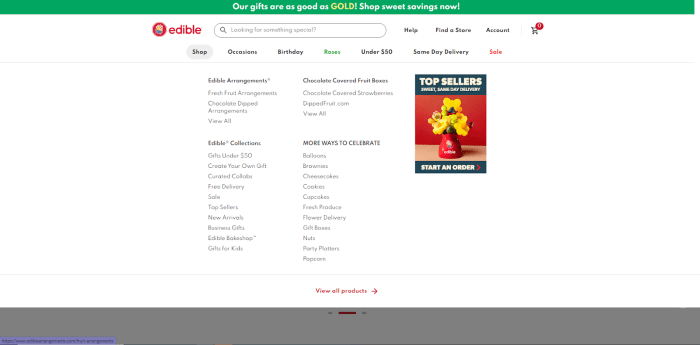
A visually rich e-commerce site can significantly enhance the customer experience. However, these visual elements must be accessible to all users, including those with disabilities. Optimizing images and media is crucial for ensuring inclusivity and maximizing your site’s reach. Poorly optimized media can lead to frustration and exclusion, negatively impacting your brand image and potentially losing valuable customers.Images and videos are powerful tools for conveying information and engaging customers, but they need careful consideration for accessibility.
Implementing best practices in image and media optimization not only improves user experience for everyone but also adheres to accessibility guidelines, making your site more inclusive and user-friendly.
Boosting your ecommerce site’s accessibility is key for a wider reach. Understanding PPC, or pay-per-click advertising, is crucial for online visibility, and knowing terms like “quality score” and “conversion rate” from ppc 101 terms to know can help you optimize your campaigns. This, in turn, will drive more traffic to your store, ultimately leading to more sales and a better user experience for everyone.
Alt Text for Images
Descriptive alt text is essential for images. Alt text, or alternative text, provides a textual description of an image for users who cannot see it, such as those using screen readers. It also helps search engines understand the content of the image, improving . Simply using “image” or “picture” is insufficient and should be avoided. Instead, concisely and accurately describe the subject of the image.
Media File Types and Accessibility
Choosing the right file type is important for accessibility and performance. Large file sizes can slow down loading times, impacting the user experience. Consider the following guidelines for different media types:
- Images: Use formats like JPEG for photographs and PNG for graphics. Optimize image files to maintain quality while reducing file size. Compressing images without sacrificing detail is crucial for optimal performance.
- Videos: Use formats like MP4 or WebM, which are widely supported. Optimize video files for smaller sizes while preserving quality. Consider using adaptive bitrate streaming (ABR) to offer multiple quality levels for varying internet speeds. This helps prevent slow loading times for users with limited bandwidth.
- Audio: Use formats like MP3 or WAV. Compressing audio files to a manageable size without compromising audio quality is essential.
Captions and Transcripts
Providing captions and transcripts for videos and audio content is vital for accessibility. Captions allow users who are deaf or hard of hearing to understand the spoken content, while transcripts benefit users who prefer to read the content. Furthermore, transcripts are important for and making your content discoverable by search engines. Transcripts should be accurate and reflect the content of the audio.
Alternative Formats
Providing alternative formats is critical for inclusivity. If a user cannot access a particular media type, providing alternative formats is crucial. For instance, an audio description for a video, or a transcript of an audio file, allows a wider range of users to understand the content.
| Media Type | Alternative Format Suggestions |
|---|---|
| Video | Audio description, transcript |
| Audio | Transcript, alternative audio track with different narration |
| Images | Descriptive alt text, captions explaining image context |
Consider providing audio descriptions for videos, offering transcripts for audio content, and offering downloadable files in different formats for maximum accessibility. For example, a product demonstration video might have an audio description that explains what is happening in the video for users who are visually impaired. Or a podcast episode could have a transcript that allows users to read the content.
Forms and Input Fields
Forms are crucial components of any e-commerce website, enabling users to complete purchases, provide feedback, or register. However, poorly designed forms can create significant barriers for users with disabilities. Designing accessible forms requires careful consideration of various factors, including label placement, input type, and error handling.Well-structured forms improve the user experience for everyone, enhancing usability and encouraging conversions.
This section dives into the critical aspects of designing accessible forms, ensuring inclusivity and ease of use for all visitors.
Accessible Form Design Examples
Form labels should be clearly associated with their corresponding input fields. Instead of relying solely on visual cues, use descriptive labels that are programmatically linked to the input fields. This ensures screen readers can effectively convey the form’s purpose to users.
- Example: Instead of just “Name:”, use “Full Name:”. The more descriptive the label, the easier it is for screen readers to announce the field’s purpose.
- Use clear and concise field instructions: Providing concise and clear instructions within the form field or using tooltips can help users understand the expected input format. This is beneficial for users with cognitive impairments or those unfamiliar with the specific input requirement.
- Provide placeholder text: Placeholder text helps users understand the expected format of the input, such as “Enter your email address”. This can greatly improve the experience for users with various needs.
Form Design for Users with Motor Impairments
Users with motor impairments may face challenges in using standard form input methods. To accommodate these users, consider alternative input methods like keyboard navigation, voice input, or adaptive technologies.
- Allow for keyboard-only navigation: Ensure all form elements are accessible through the keyboard. This means that users can tab through the fields and submit the form using only the keyboard.
- Provide sufficient spacing between form elements: Adequate spacing between form elements allows for easier manipulation, especially for users with fine motor control difficulties. A visually appealing and well-spaced form enhances user experience and is conducive to efficient form completion.
- Offer alternative input methods: Consider allowing users to use voice input or adaptive technologies like screen magnifiers to complete forms. This demonstrates a commitment to inclusivity, making the platform accessible to users with a diverse range of needs.
Clear Instructions for Form Completion
Clear and concise instructions are essential for users to understand the form’s requirements. Provide instructions directly within the form field or through tooltips for a more comprehensive user experience. These instructions can assist users in filling out the form accurately and efficiently.
- Use simple and direct language: Avoid jargon or technical terms that may be confusing for some users. Use straightforward and concise language for optimal clarity.
- Provide visual cues: Visual cues such as icons or color-coding can assist users in understanding the purpose of different fields. This aids users in understanding and following instructions correctly.
- Provide examples: Including examples of the expected input format within the form can help users grasp the required format more effectively.
Error Handling and Feedback
Error handling and feedback mechanisms are critical for user experience. Clear error messages should be displayed immediately after an invalid input, guiding the user toward a correction. Clear and immediate feedback for form submissions is important for usability and helps prevent frustration.
- Display clear error messages: Use descriptive and user-friendly error messages that clearly indicate the reason for the error and suggest the correct format. This helps users understand the problem and rectify it quickly.
- Provide immediate feedback on submissions: Users appreciate immediate feedback, whether it’s a confirmation message or an indication of an error. This shows the platform is responsive and acknowledges the user’s input.
- Highlight the error fields: Highlighing the specific input field that contains the error is crucial for users to identify and correct the mistake quickly. Clear highlighting helps users focus on the specific error point.
Form Element Accessibility Attributes
| Form Element | Accessibility Attributes |
|---|---|
| Text Field | `aria-label`, `placeholder` |
| Radio Button | `aria-label`, `for` attribute linked to label |
| Checkboxes | `aria-label`, `for` attribute linked to label |
| Dropdown Menu | `aria-label`, clear and concise options |
| Textarea | `aria-label`, clear instructions on expected input |
Color Contrast and Visual Design
Making your e-commerce site accessible isn’t just about text; it’s also about how colors interact and how visual elements are perceived. Effective color contrast ensures that users with low vision can easily distinguish text from backgrounds, while thoughtful visual design aids users with cognitive disabilities by making the site more intuitive and predictable. This section dives into designing for both needs.Sufficient color contrast isn’t just a matter of aesthetics; it’s a critical accessibility consideration.
Failing to meet WCAG (Web Content Accessibility Guidelines) requirements can significantly impact user experience, particularly for individuals with visual impairments. This section will provide a guide to achieving and maintaining appropriate color contrast, highlighting practical examples and data to support the recommendations.
Achieving Sufficient Color Contrast
Color contrast is crucial for readability. Users with low vision often rely on high contrast to distinguish text from its background. WCAG guidelines provide specific ratios to ensure adequate contrast. Meeting these guidelines improves readability and accessibility for all users.
WCAG Color Contrast Ratios
The WCAG guidelines define minimum contrast ratios between text and its background based on font size. This is a critical aspect of accessibility, and failure to adhere to these guidelines can result in a frustrating experience for users with visual impairments.
| Text Size | Minimum Contrast Ratio |
|---|---|
| Large text (14pt or larger) | 4.5:1 |
| Small text (12pt or smaller) | 7:1 |
| Large text on a darker background | 3:1 |
This table Artikels the recommended contrast ratios for different text sizes, highlighting the importance of larger font sizes for reduced contrast.
Examples of Compliant Color Palettes
Various color palettes meet WCAG guidelines. Here are some examples:
- Dark Gray Text on Light Gray Background: This combination often works well and is readily available across many themes and color palettes.
- Dark Blue Text on Light Yellow Background: This is a good example of a high-contrast combination.
- Black Text on White Background: A classic combination that consistently meets WCAG guidelines.
These examples showcase the versatility of color combinations that adhere to accessibility guidelines, highlighting the variety of options available.
Importance for Users with Low Vision
Users with low vision require high contrast to distinguish text and other elements. Adequate color contrast enables them to easily read content and navigate the site. This directly impacts usability and satisfaction, making the website more inclusive and accessible.
Ensuring Visual Understandability for Users with Cognitive Disabilities
Users with cognitive disabilities may find complex or overly-saturated visuals overwhelming. Visual elements should be clear, uncluttered, and predictable. Visual hierarchies, such as varying font sizes and weights, can help guide users through the information.
- Consistent Visual Hierarchy: Using consistent visual cues, such as font sizes, colors, and spacing, helps users understand the structure of the page.
- Clear Visual Cues: Visual elements should convey information clearly and unambiguously. Avoid ambiguous imagery or complex graphics.
- Simple and Uncluttered Design: A minimalist design can be more intuitive and less overwhelming for users with cognitive disabilities.
These elements create a more accessible and user-friendly environment for a broader audience.
Mobile Accessibility
Mobile commerce is booming, and a crucial aspect of success is ensuring your online store is easily navigable and accessible on various mobile devices. Ignoring mobile accessibility can significantly limit your reach and potentially alienate a substantial portion of your customer base. A well-optimized mobile experience fosters trust and convenience, ultimately driving sales and brand loyalty.A mobile-friendly e-commerce site prioritizes user experience by adapting to different screen sizes, input methods, and network conditions.
This adaptability translates to a seamless browsing experience, enabling customers to easily find products, complete purchases, and engage with your brand, regardless of the device they use.
Responsive Design Principles
Responsive design is paramount for a positive mobile experience. It dynamically adjusts the layout and content to fit the screen size of the device, ensuring readability and usability across various mobile platforms. This approach avoids the need for separate mobile-specific versions of your website, simplifying maintenance and updates. The core principle involves using flexible grids, fluid images, and media queries to tailor the display to different screen resolutions and orientations.
Touchscreen Interactions
Optimizing for touchscreens involves considering the specific nature of touch interactions. Buttons and links should be large enough for easy tapping, and avoid overly complex layouts that might be cumbersome to navigate with a finger. Clear visual cues, such as visual feedback when an element is selected, are important. Implementing proper spacing between interactive elements prevents accidental taps and enhances the overall user experience.
Want to boost your online store’s visibility and attract more customers? Optimizing your ecommerce site for accessibility is key. Think about clear product descriptions, easy navigation, and high-quality images. Understanding how business development roles can leverage marketing to close the sale here can help you craft compelling marketing materials that resonate with potential buyers. Ultimately, a more accessible site leads to a better customer experience, translating to more sales and a thriving business.
Using appropriate input types like dropdowns and date pickers are also important to avoid confusion or frustration. Leveraging user-friendly controls and interactive elements will ensure a smooth and enjoyable experience for users.
Mobile-Friendly E-commerce Website Designs
Examples of successful mobile-friendly e-commerce websites often showcase intuitive navigation, prominent product displays, and simplified checkout processes. A prominent example is a website using a large, easily tappable “add to cart” button. Another example is a website using a carousel to display products, making it easy to scroll through multiple items. A third example includes using a visually appealing and simple layout that ensures the layout is adaptable to various screen sizes.
These websites typically prioritize clear call-to-actions and visually appealing product images that are optimized for smaller screens. A seamless transition between different pages and sections is another key feature of these designs.
Mobile Accessibility Considerations
| Aspect | Considerations |
|---|---|
| Screen Size and Resolution | Ensure the website adapts to various screen sizes and resolutions to maintain readability and usability across different mobile devices. |
| Touchscreen Interactions | Design elements for easy tapping, appropriate spacing, and clear visual feedback. |
| Navigation | Intuitive and clear navigation with easy access to key sections (e.g., products, cart, account). |
| Text Size and Readability | Maintain legible text sizes that are easily readable on smaller screens. |
| Images and Media | Optimize image sizes and formats for quick loading times and to prevent slowdowns. |
| Loading Speed | Prioritize fast loading times to provide a positive user experience and avoid frustrating delays. |
| Input Fields | Use accessible input fields that accommodate various input methods (e.g., keyboards, touchscreens). |
| Accessibility Features | Ensure compliance with accessibility guidelines to accommodate users with disabilities. |
Keyboard Navigation
Ensuring your ecommerce site is fully accessible to users who rely on a keyboard for navigation is crucial for inclusivity. A well-designed keyboard navigation system allows users to explore and interact with your site without needing a mouse, enhancing their experience and making your platform more user-friendly. This guide details how to implement keyboard-only navigation, including the use of keyboard shortcuts and the identification of common navigation challenges.Keyboard navigation is essential for users with disabilities who rely on the keyboard for interaction.
Implementing a robust system ensures that all website content is accessible and usable by everyone, regardless of their abilities.
Keyboard-Only Navigation Implementation
Keyboard-only navigation requires careful consideration of every interaction point on your site. Each link, button, form field, and interactive element must be directly accessible and navigable using only the Tab key. This means you need to programmatically define the order in which elements are tabbed through.
Keyboard Shortcuts for Common Functions
Implementing keyboard shortcuts for frequently used actions streamlines the user experience. This makes navigation more efficient and intuitive for users who rely on the keyboard.
- Adding a shortcut for “submitting a form” can save users multiple steps. For instance, using “Shift+Enter” could trigger form submission, enabling keyboard-only users to quickly complete actions.
- Implementing shortcuts for “page navigation” such as “Page Up” and “Page Down” makes navigating through long pages more manageable for keyboard-only users.
Elements Difficult to Navigate via Keyboard
Certain elements, even with well-defined tab order, can present challenges for keyboard-only navigation.
- Complex Forms: Forms with many fields and intricate layouts might require careful consideration to ensure logical tab order and avoid trapping users.
- JavaScript-Driven Elements: Dynamically generated content or elements controlled by JavaScript need to be accessible via keyboard. Ensure the keyboard focus is correctly set on dynamically generated content.
- Pop-up Windows and Modals: Pop-ups that don’t properly handle keyboard focus can disrupt keyboard-only navigation. These should use accessible modal dialogs.
Comparison of Keyboard Navigation Approaches, Tips to make your ecommerce site more accessible
A comparison of different approaches to keyboard navigation highlights the trade-offs and benefits of each.
Making your e-commerce site accessible isn’t just about following guidelines; it’s about creating a truly inclusive experience for everyone. A key element in achieving this is fostering a strong “mission driven company culture,” like the one at Tribundi Digital , where everyone is motivated by a shared purpose. This commitment to accessibility trickles down to every aspect of site design, ensuring that every feature is usable and enjoyable by all.
Focusing on user-friendliness and clear navigation are also crucial tips for making your site accessible to a wider audience.
| Approach | Description | Advantages | Disadvantages |
|---|---|---|---|
| Tab Order | Sequential navigation using the Tab key | Simple and widely supported | Can be challenging for complex layouts |
| ARIA Attributes | Using ARIA attributes to define the role and purpose of elements | Enhanced accessibility and semantics | Requires understanding and correct use of ARIA |
| Keyboard Shortcuts | Using keyboard shortcuts for commonly used actions | Improved efficiency and usability | May not be intuitive for all users |
Accessibility Testing and Evaluation

Making your e-commerce site accessible isn’t just a good thing to do; it’s a crucial part of building a successful business. A website that caters to diverse needs and abilities is more likely to attract and retain customers. This section delves into the essential steps for rigorously testing and evaluating the accessibility of your online store.Thorough testing is paramount to ensure that your website truly meets the needs of all potential customers.
This process goes beyond simply checking boxes; it involves a deep understanding of user experience and a commitment to ongoing improvement. It is an iterative process that should be a core part of your website development lifecycle.
Accessibility Testing Checklist
A well-structured checklist is a critical first step in assessing your website’s accessibility. It acts as a guide, ensuring that you cover all the essential areas.
- Navigation and Structure: Verify clear and logical navigation paths. Ensure that users can easily find the information they need, regardless of their browsing method (mouse, keyboard, or assistive technology).
- Content Readability: Check for appropriate font sizes, sufficient line spacing, and sufficient color contrast between text and background. Ensure the content is well-organized and easily scannable.
- Image and Media Accessibility: Verify that all images have descriptive alt text, and that multimedia content has captions or transcripts. Ensure that videos have captions or transcripts.
- Form Accessibility: Ensure that all forms have clear labels and instructions. Verify that input fields are appropriately labeled and that the forms can be used effectively by assistive technology.
- Color Contrast: Confirm compliance with WCAG guidelines for color contrast. This is critical for users with visual impairments or color blindness. Test using different color palettes.
- Mobile Responsiveness: Check the website’s responsiveness across various devices and screen sizes. Verify that the site functions smoothly and efficiently on mobile browsers and mobile operating systems.
- Keyboard Navigation: Ensure that all interactive elements are accessible using only a keyboard. This is vital for users who cannot use a mouse or other pointing devices.
- Screen Reader Compatibility: Test the site with screen readers to identify any issues with navigation, reading, and interactive elements.
User Testing for Accessibility Issues
User testing is invaluable for uncovering accessibility issues that automated tools might miss. Real users with diverse needs can provide critical feedback on the usability of your site.
- Recruit Diverse Participants: Recruit users with various disabilities, including visual impairments, auditory impairments, motor impairments, and cognitive differences. Seek out individuals who use screen readers or other assistive technologies.
- Define Specific Tasks: Design specific tasks for users to perform on your website. This allows you to focus on the user’s experience during critical actions, such as shopping or checking out.
- Observe and Document: Observe how users navigate and interact with the site. Document their experience and any difficulties they encounter. Pay particular attention to any frustration or confusion.
- Gather Feedback: After the testing, gather feedback from participants about their experience. Encourage them to provide specific examples of accessibility challenges.
Common Accessibility Issues and Fixes
Identifying and fixing common accessibility problems is a key part of creating an inclusive website.
- Missing Alt Text for Images: Provide descriptive alt text for all images to convey the information to screen reader users. “Image of a red dress” is not as helpful as “Stylish red dress, perfect for spring.”
- Insufficient Color Contrast: Ensure sufficient color contrast between text and background colors. Use tools to check for WCAG compliance. Consider using color palettes with sufficient contrast ratios for all users.
- Unclear Form Labels: Ensure all form fields have clear and concise labels. Using descriptive labels improves usability and accessibility for screen reader users. Example: “First Name” is better than just “FName.”
Regular Accessibility Audits
Regular accessibility audits are essential for maintaining a compliant and user-friendly website. This ensures ongoing adherence to guidelines and best practices.
- Automated Tools: Employ automated accessibility tools to scan your site for common issues. These tools can identify problems early in the development cycle.
- Manual Reviews: Conduct periodic manual reviews to address issues that automated tools may miss. This can include reviewing the website’s structure, content, and interactive elements.
- Feedback Mechanisms: Implement feedback mechanisms to gather user input and identify any emerging accessibility concerns.
Accessibility Testing Tools
This table summarizes various accessibility testing tools and their functionalities.
| Tool | Functionality |
|---|---|
| WAVE | Automated accessibility evaluation tool that identifies common accessibility issues. |
| Axe | Open-source tool for automated accessibility testing that provides detailed reports on the identified issues. |
| Accessibility Insights (Chrome extension) | Provides real-time feedback and suggestions on accessibility issues within the browser. |
| Color Contrast Analyser | Analyzes the color contrast between text and background colors to ensure WCAG compliance. |
Closing Summary
In conclusion, building an accessible e-commerce site is a powerful investment in your business. It’s not just the right thing to do, it’s good business. By implementing the tips Artikeld here, you can expand your customer base, enhance user experience, and build a more successful online store for everyone. Remember, accessibility is not an afterthought; it’s an integral part of creating a truly inclusive online environment.