
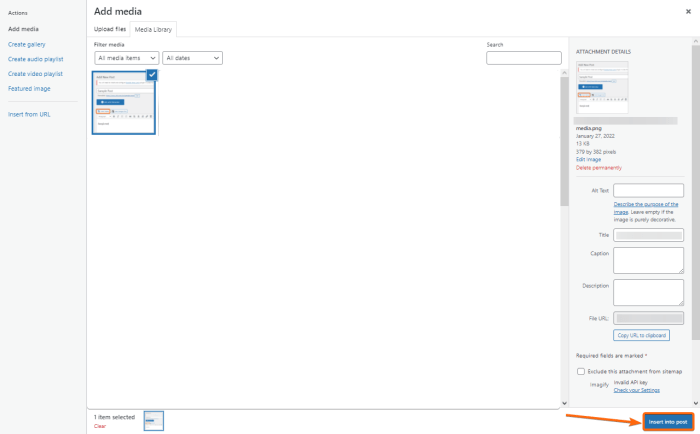
How to uploading media into WordPress is a crucial skill for any WordPress user. This guide dives deep into the entire process, from basic uploads to advanced techniques, ensuring your website’s media is optimized for performance and security. We’ll cover everything from the standard upload method to handling different file types and troubleshooting common issues. Get ready to master WordPress media management!
WordPress makes managing images, videos, and audio files easy. But understanding the best practices for uploading and optimizing media is essential for a fast, engaging, and professional website. This guide will equip you with the knowledge and strategies to handle all your media needs effectively within the WordPress platform.
Introduction to Media Uploads in WordPress
WordPress, a popular content management system, seamlessly integrates media management into its core functionality. This allows users to easily upload and manage various file types like images, videos, and audio, directly within the platform. This streamlined process is crucial for creating engaging and informative content. Efficient media handling ensures a smooth user experience and optimized website performance.Uploading media files to WordPress involves a straightforward procedure.
Users can directly upload files from their computer or use various integrations to import media from other sources. Once uploaded, WordPress organizes these files for easy access and use within website content. This streamlined approach is designed for both novice and experienced users.
Media Management Overview
WordPress provides a user-friendly interface for managing uploaded media. The system automatically handles file organization, metadata tagging, and integration with various website elements. This centralized management system simplifies content creation and ensures consistent media use across the site.
Fundamental Concepts of File Uploads
WordPress supports a wide range of file formats, including images (JPEG, PNG, GIF), videos (MP4, AVI), and audio (MP3, WAV). These files can be integrated directly into posts, pages, or even used as featured images. Understanding the file types and their appropriate uses is essential for creating high-quality content. This also helps in avoiding issues related to compatibility and display.
Media Optimization for Website Performance
Optimizing uploaded media is crucial for website performance. Large file sizes can significantly slow down page load times. Techniques like image compression and resizing, and appropriate video encoding, are key to improving the website’s speed. By optimizing media files, website owners ensure a positive user experience and better search engine rankings. For instance, a website with fast-loading images will attract and retain more visitors.
File Types, Sizes, and Upload Methods
| File Type | File Size | Upload Method |
|---|---|---|
| Images (JPEG, PNG, GIF) | Vary depending on resolution and compression; typically under 5MB for optimal performance | Direct upload from computer or using a media library. |
| Videos (MP4, AVI) | Can range from a few MB to several GB depending on length and quality; optimizing is crucial. | Direct upload from computer or using a media library; video editors can help in optimizing videos for web use. |
| Audio (MP3, WAV) | Depends on length and quality; typically under 10MB for optimal performance. | Direct upload from computer or using a media library; consider using audio editors to ensure good quality and size. |
Methods for Uploading Media
WordPress offers several ways to upload and manage media files, from simple direct uploads to using plugins for more advanced features. This section delves into the standard WordPress media upload process, exploring different methods and their advantages and disadvantages. Understanding these methods is crucial for effectively organizing and utilizing your media within your website.The standard WordPress media library provides a structured approach to storing and retrieving media assets.
This method offers a user-friendly interface for managing images, videos, and other files, allowing for easy organization and retrieval within the WordPress environment. Different upload methods offer varying levels of control and flexibility, and the best choice often depends on the specific needs of your website.
Standard WordPress Media Upload
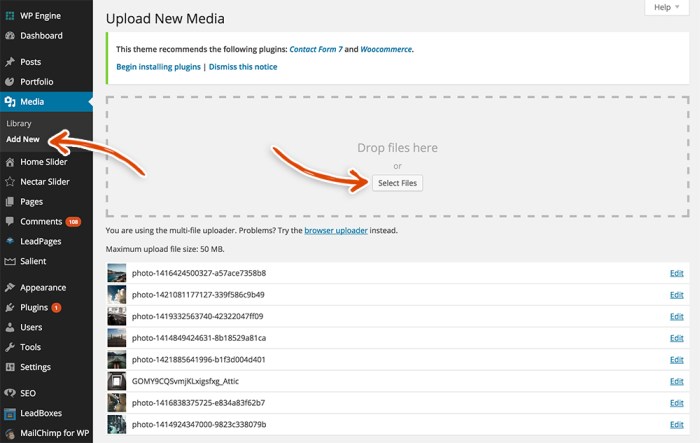
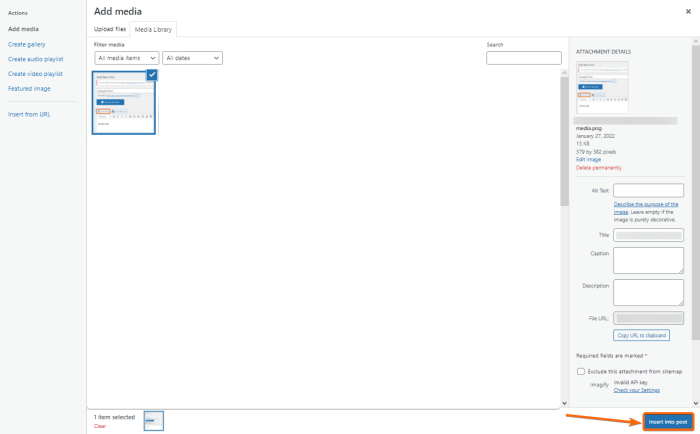
The standard WordPress media upload process is straightforward and accessible through the WordPress admin interface. To upload a file, navigate to the “Media” section within the dashboard. Click the “Add Media” button, and you’ll be presented with a file selection dialog. Select the file from your computer, and WordPress will automatically handle the upload and processing of the file.
You can then add titles, descriptions, and alt text for the media file, and choose where to display the file on your site.
Using the WordPress Media Library
The WordPress media library acts as a central repository for all uploaded media. It allows for efficient organization and management of files. Features like tagging, categorizing, and sorting make it easier to locate specific files later. Using the library’s features to categorize and tag media ensures that files can be quickly found when needed. You can also assign different media files to specific posts or pages within your website, facilitating efficient media management.
Direct Upload vs. Plugins
Direct upload, using the built-in WordPress interface, is the most common method. It’s simple, reliable, and suitable for most users. Plugins, on the other hand, can offer advanced features and customizations. These plugins may offer specialized functionalities, such as bulk uploads, enhanced media management, or specific file formats. Some plugins might be better for handling large volumes of media or offer specific image optimization options.
The choice depends on the scale and complexity of your media needs.
Uploading Multiple Files Simultaneously
Uploading multiple files simultaneously is often a practical approach. The standard WordPress interface allows selecting multiple files for upload in a single operation. The process is intuitive and mirrors the standard file selection and upload behavior found in most modern operating systems. This feature streamlines the process for uploading numerous images or documents.
Comparison of Upload Methods
| Upload Method | Pros | Cons |
|---|---|---|
| Standard WordPress Upload | Easy to use, readily available, straightforward. | Limited customization options, basic organization features. |
| Plugins | Advanced features, customized organization, specialized handling for specific file types. | Can be complex to install and configure, potentially introducing compatibility issues. |
Media Optimization Techniques
Optimizing media files is crucial for a smooth user experience on your WordPress website. Large image and video files can significantly slow down page load times, negatively impacting your search engine rankings and user engagement. Efficient optimization ensures your content is accessible and appealing to a wider audience.
Significance of Optimizing Media Files
Optimized media files contribute to faster website loading times, improved user experience, and enhanced search engine rankings. Faster loading speeds result in lower bounce rates and increased user engagement, which are key metrics for website success. Search engines favor websites that load quickly, as they correlate speed with a positive user experience. Consequently, optimized media files are essential for improving your site’s overall performance and visibility.
Image Compression Techniques
Image compression reduces file size without a noticeable loss in quality. Various techniques are employed, including lossy and lossless compression. Lossy compression discards some image data to achieve a smaller file size, while lossless compression retains all original data. Choosing the appropriate method depends on the specific image and the desired balance between file size and quality.
Tools like Photoshop, GIMP, and online converters offer various image compression options.
Best Practices for Video and Audio Optimization
Video and audio files often take up significant space. Optimizing these files involves reducing file size without compromising quality. Methods include adjusting video resolution and bitrate, choosing appropriate audio codecs, and using online compression tools. Careful selection of formats like WebM for videos and MP3 for audio can also help. These choices can dramatically reduce file sizes without a noticeable drop in quality.
Responsive Image Techniques
Responsive images adapt to different screen sizes and devices, ensuring optimal viewing experience across various platforms. Using the srcset attribute in HTML allows you to specify different image sizes for different screen resolutions. This ensures the browser loads the most appropriate image size, reducing loading time and optimizing visual quality. Responsive images are crucial for providing a consistent and engaging experience on all devices.
Image Formats and Compression Ratios
Different image formats offer varying compression ratios. Choosing the right format can significantly impact file size.
| Image Format | Compression Ratio | Description |
|---|---|---|
| JPEG (JPG) | High | Common format for photographs, offers good balance between quality and file size. Lossy compression. |
| PNG | Medium | Suitable for graphics, logos, and images with sharp lines. Lossless compression, retaining original quality. |
| WebP | High | Modern format developed by Google, offering good compression and support for transparency and animations. Lossy compression. |
| GIF | Low | Suitable for animations and simple graphics. Lossless compression, but often larger files. |
Note that compression ratios can vary based on the image content and the specific compression settings used. Experimentation with different formats and settings is essential to find the optimal balance between quality and file size for your specific needs.
Handling Different File Types
WordPress offers robust support for various media formats, allowing you to seamlessly integrate images, videos, and audio into your website. Understanding the nuances of each file type and WordPress’s handling of them is crucial for maintaining optimal website performance and user experience. This section delves into the specifics of supporting different file types, providing practical guidance on best practices for uploading and optimizing your media.Different file types demand different handling strategies to ensure proper display and compatibility.
Knowing how WordPress manages these diverse file types empowers you to make informed choices about which files to upload and how to prepare them for optimal display on your website.
Image Format Support
WordPress supports the most common image formats, including JPEG, PNG, and GIF. JPEGs are excellent for photographs and images with many colors, retaining quality while keeping file sizes relatively compact. PNGs are ideal for images with transparency or sharp lines, such as logos or illustrations. GIFs, while limited in color palettes, are still valuable for animations or simple graphic designs.
Each format offers unique advantages, and understanding these differences will help you choose the best format for your specific image needs.
Video File Handling
WordPress readily accommodates video files, particularly MP4 and WebM formats. MP4 is a widely supported format offering good quality and compatibility across various devices and browsers. WebM, while sometimes less widely compatible, is often a more efficient choice due to its compression capabilities, leading to smaller file sizes without significant quality loss. Consider the specific needs of your website and target audience when deciding between these formats.
Audio File Handling
WordPress also handles audio files, including MP3 and WAV formats. MP3 is a popular and widely supported format for audio, while WAV is a higher-quality format that preserves more details. Selecting the appropriate format depends on the audio’s complexity and your desired balance between file size and audio quality. Use WAV for critical audio files where every detail matters; otherwise, MP3 offers a good balance.
Handling Large File Uploads
Large file uploads can be challenging for WordPress, especially if the server resources are limited. The size limit is configurable and often determined by your hosting plan. If you encounter issues with large file uploads, you may need to explore alternative methods like using a third-party plugin or adjusting server settings. Breaking down large files into smaller ones, using file compression techniques, or using cloud storage for pre-uploads can mitigate this problem.
Careful planning and optimization of file size are crucial for seamless large file uploads.
Supported File Types
| File Type | Recommended Usage |
|---|---|
| JPEG (.jpg, .jpeg) | Photographs, images with a wide range of colors. |
| PNG (.png) | Images with transparency, logos, illustrations. |
| GIF (.gif) | Animations, simple graphics. |
| MP4 (.mp4) | Videos, generally high quality. |
| WebM (.webm) | Videos, often smaller file sizes, good for online streaming. |
| MP3 (.mp3) | Audio recordings, good balance between quality and file size. |
| WAV (.wav) | Audio recordings, higher quality, less compressed. |
Troubleshooting Common Issues
Uploading media to WordPress can sometimes hit snags. Understanding the common problems and their solutions is crucial for a smooth workflow. Knowing how to identify and fix errors can save significant time and frustration, allowing you to focus on creating great content.
Identifying Upload Problems
Common issues during media uploads often stem from compatibility problems between the file and WordPress’s settings or server limitations. These issues can manifest as error messages, slow upload speeds, or complete upload failures. Thorough examination of these issues is essential for effective troubleshooting.
File Size Limits
WordPress, like most web servers, has limitations on the size of files that can be uploaded. Exceeding these limits is a frequent cause of upload failures. The specific file size limit is often configurable within the WordPress settings. If a file is too large, it will not be accepted for upload. Reducing the file size through compression or using alternative methods of sharing larger files is essential to avoid upload failures.
Server Issues
Sometimes, issues are not with the file itself but with the server hosting WordPress. Slow upload speeds, intermittent failures, or generic error messages might indicate server overload, temporary outages, or insufficient server resources. Checking server status and troubleshooting server-side issues is critical to resolving upload problems. If the server is experiencing problems, attempting to upload during peak hours or periods of high traffic may lead to upload issues.
Network Connectivity Problems
Issues with internet connectivity can also hinder uploads. Poor network speed or unstable connections can result in incomplete uploads or timeouts. Ensuring a stable internet connection during the upload process is crucial for successful media uploads. Troubleshooting network problems, like checking for interruptions, switching to a different network, or verifying the internet speed, is essential to resolve this problem.
Incorrect File Types
Not all file types are supported by WordPress. Unsupported file types will trigger an error. Ensuring the file type is compatible with WordPress is crucial for successful uploads. If the file type is incompatible, uploading a different file format that is supported will resolve the issue. Consult the WordPress documentation for a comprehensive list of supported file types.
Browser Compatibility Issues
Certain browsers might not be compatible with WordPress’s upload interface. This can result in compatibility issues, such as upload failures or unexpected behavior. Using a supported browser is essential to avoid issues. Using a supported browser or testing with a different browser is crucial in resolving this problem.
Table of Common Upload Errors and Resolutions, How to uploading media into wordpress
| Error | Cause | Resolution |
|---|---|---|
| File too large | File exceeds server upload limit | Compress the file, use alternative file sharing methods, or adjust server settings if possible. |
| Server error | Server overload, outage, or insufficient resources | Wait for server to recover, try uploading at a different time, or contact your hosting provider. |
| Network error | Poor internet connection or unstable network | Ensure stable internet connection, try uploading at a different time, or use a different network. |
| Unsupported file type | File type not supported by WordPress | Upload a different, supported file type. |
| Browser incompatibility | Browser does not support WordPress’s upload interface | Use a supported browser. |
Security Considerations for Media Uploads
Protecting uploaded media from unauthorized access and malicious attacks is paramount in a WordPress environment. Robust security measures are crucial to maintaining data integrity, user trust, and preventing potential harm to your website and its visitors. This section delves into the essential security considerations for media uploads, outlining best practices and practical strategies to safeguard your WordPress site.Media files, whether images, videos, or documents, often contain sensitive information.
Uploading media to WordPress is pretty straightforward, but to really make your site pop, you need to think about how to attract customers. Learning about top-of-the-funnel marketing strategies, like those detailed in attracting customers a guide to top of the funnel marketing , can help you understand how to present your media in a way that truly resonates with your audience.
Once you’ve got that figured out, uploading images, videos, and other files becomes a way to engage your viewers, not just a technical task.
A compromised upload process can expose this data, potentially leading to privacy breaches, reputational damage, and even financial losses. Implementing proper security protocols throughout the media upload pipeline minimizes these risks.
Uploading media to WordPress is pretty straightforward. Just navigate to the media library, click “Add New,” and select your file. Knowing how to do this efficiently is crucial, especially if you’re part of a fast-growing company like pure seo 2nd fastest growing technology company in auckland. They likely have a robust workflow, but the core process for uploading images remains the same for everyone, regardless of company size.

Security Measures to Protect Uploaded Media
Protecting uploaded media necessitates a multi-layered approach. Implementing strong authentication and authorization mechanisms is the first line of defense. Restricting access to media files based on user roles and permissions ensures only authorized personnel can view, modify, or delete them. Regular security audits are vital for identifying vulnerabilities and patching potential weaknesses.
Best Practices for Preventing Malicious File Uploads
Preventing malicious file uploads is critical. Implement strict file type validation to ensure that only permitted file types are accepted. Utilize strong input sanitization techniques to prevent attackers from exploiting vulnerabilities in your upload form. Regularly updating WordPress and its plugins is essential for addressing known security flaws.
Uploading media to WordPress is straightforward, just like sharing photos of your favorite dishes. For instance, if you’re inspired by the success story of Gift a Feast founder Gypsy Achong, success story gift a feast founder gypsy achong , you’ll find that seamlessly incorporating images into your blog posts is key. You can easily upload images and videos to boost engagement and storytelling in your WordPress posts.
Importance of Media File Permissions
Media file permissions dictate who can access and manipulate uploaded files. Appropriate permissions are essential for preventing unauthorized access and modifications. Ensuring that only the necessary users have the required permissions for each file type helps mitigate potential threats. Incorrect permissions can grant malicious actors access to sensitive data.
Implementing Secure File Storage Solutions
Secure file storage solutions are vital for protecting uploaded media. Utilize secure storage solutions such as cloud storage or dedicated server storage with robust access controls. Employing encryption techniques for data at rest and in transit further enhances security. This proactive approach ensures data confidentiality and integrity.
Security Protocols for Media Uploads
The table below Artikels key security protocols for media uploads, emphasizing crucial steps for a secure process.
| Security Protocol | Description | Implementation |
|---|---|---|
| File Type Validation | Ensuring only permitted file types are accepted | Use PHP’s `mime_content_type()` function to check file extensions and content. |
| Input Sanitization | Preventing malicious code from being embedded in file names or metadata | Use functions like `sanitize_file_name()` to sanitize file names before saving. |
| Access Control | Restricting access to media files based on user roles and permissions | Utilize WordPress’s built-in role-based access control system. |
| Regular Updates | Keeping WordPress, plugins, and themes updated | Enable automatic updates where possible or regularly check for updates. |
| Secure Storage | Utilizing secure storage solutions like cloud storage or dedicated servers | Employ encryption for data at rest and in transit. |
Advanced Media Management: How To Uploading Media Into WordPress
Taking your WordPress media management to the next level involves leveraging plugins and understanding the intricacies of media libraries. This section delves into advanced strategies for optimizing, organizing, and scheduling media uploads, ensuring a streamlined workflow and enhanced user experience. WordPress plugins are invaluable tools for expanding functionality beyond the core platform.Effective media management is crucial for maintaining a well-organized website.
Properly categorized and optimized media assets contribute significantly to faster loading times, better performance, and a more intuitive user experience. This advanced approach also allows for greater control over the entire media lifecycle, from upload to scheduling and eventual removal.
WordPress Plugins for Enhanced Media Management
WordPress offers a wealth of plugins designed to enhance media management. These plugins extend the core functionality of the platform, providing advanced features for optimizing and organizing media. From simplifying the upload process to automating tasks, plugins cater to specific needs and workflows.
- Many plugins offer intuitive interfaces for bulk uploading, resizing, and optimizing images. These tools often incorporate intelligent file compression techniques to reduce file sizes without sacrificing image quality.
- Some plugins provide advanced tagging and categorization systems, enabling users to organize their media assets into hierarchical structures. This hierarchical structure allows for easier retrieval and reduces the time spent searching for specific media files.
- Integration with other services, such as cloud storage platforms or image editing software, allows for seamless workflow and access to a broader range of functionalities.
Advanced Features of Plugins for Optimizing and Organizing Media
Beyond basic uploading and organizing, plugins provide advanced tools. These tools streamline the media workflow, making it more efficient and intuitive.
- Automated resizing and cropping capabilities are common features. This automation significantly reduces manual effort, ensuring consistent image dimensions across the website.
- Automated image optimization plugins can significantly improve page load times by compressing images without noticeable quality loss. These plugins often employ intelligent algorithms to identify optimal compression settings.
- Plugins can facilitate the creation of custom media galleries and slideshows. This allows for dynamic and engaging display of media content.
Media Libraries in Content Organization
WordPress’s media library is a fundamental component for organizing media assets. A well-structured media library is essential for efficient retrieval and use of media files.
- Effective tagging and categorization within the media library allow for quick retrieval of specific media items.
- Proper use of folders and subfolders within the library creates a hierarchical structure, enabling better organization and reducing search time.
- Using descriptive filenames and alt text enhances searchability and accessibility. Alt text provides context for visually impaired users and improves .
Scheduling Media Uploads
Some plugins offer the ability to schedule media uploads for specific dates and times. This is particularly useful for automating content creation and ensuring media is available when needed. Scheduled uploads can be used to batch process images or video, enabling efficient media management.
- Scheduling media uploads allows for greater control over the publishing process, ensuring timely content delivery.
- Automated scheduling is valuable for maintaining a consistent content schedule, particularly in situations involving recurring events or promotions.
Popular WordPress Media Management Plugins
A variety of plugins are available to enhance media management. Choosing the right plugin depends on specific needs and workflows.
| Plugin Name | Key Features |
|---|---|
| Advanced Custom Fields | Excellent for creating custom fields and extending functionality of the media library. |
| WP Offload Media | Efficiently offloads media files to cloud storage, improving website performance. |
| Smush | Automates image optimization and compression, reducing file sizes and improving page load times. |
| Yoast | Improves by optimizing image alt text and metadata. |
Final Thoughts
In conclusion, effectively uploading and managing media in WordPress is a multi-faceted process that combines technical know-how with strategic optimization. By understanding the various upload methods, optimizing your files, and handling diverse file types, you can ensure a seamless user experience and enhance your website’s overall performance. Remember, security is paramount, so always prioritize secure practices when uploading media to WordPress.
This guide equips you with the tools and techniques to confidently manage your website’s media assets.