
How to add new user in WordPress? This guide dives deep into user management, explaining everything from fundamental roles to advanced security considerations. We’ll walk you through the process step-by-step, from creating new accounts to managing user profiles and ensuring your site’s safety.
Understanding user roles and permissions is crucial for effective WordPress site management. This post details the various roles, their associated privileges, and how to assign them correctly. We’ll also cover essential security practices to protect your site from unauthorized access.
Introduction to WordPress User Management
WordPress, a powerful content management system, allows for granular control over who can access and modify various aspects of your website. Effective user management is crucial for maintaining website security and ensuring that only authorized individuals can perform specific tasks. This section explores the fundamental concepts of user roles and capabilities within the WordPress admin panel.Understanding different user roles and their permissions is vital for a well-organized and secure website.
This empowers you to assign specific responsibilities to different individuals, preventing unauthorized access and ensuring that tasks are handled appropriately.
User Roles and Capabilities
WordPress employs a hierarchical system of user roles, each with a defined set of capabilities. These roles dictate what actions a user can perform within the WordPress admin area. Different roles offer varying levels of access, enabling you to control content editing, commenting privileges, and other website functionalities.
Overview of User Management in the WordPress Admin Panel
The WordPress admin panel provides a centralized location for managing users. Within this panel, you can add, edit, and delete users, as well as assign roles to manage their access privileges. This control is essential for maintaining a secure and well-managed website.
Different User Roles and Their Permissions
WordPress offers a range of user roles, each with distinct permissions. These roles are a critical part of the system, allowing you to assign varying levels of access. Here’s a breakdown of common user roles and their associated capabilities:
| User Role | Access to Posts | Access to Pages | Access to Comments |
|---|---|---|---|
| Administrator | Full | Full | Full |
| Editor | Full | Full | Moderate |
| Author | Full | Limited (usually only their own) | Moderate |
| Contributor | Limited (only their own posts) | Limited (only their own pages) | Moderate |
| Subscriber | No access | No access | Read only |
This table highlights the key distinctions between each role, providing a clear understanding of the associated permissions. Each role offers a specific set of privileges, enabling administrators to fine-tune user access according to their needs.
Adding New Users
WordPress empowers you to manage user access with precision. Adding new users is a straightforward process, crucial for maintaining control over your website’s content and functionalities. This section details the procedure for creating user accounts and assigning various roles.Adding users allows for granular control over who can perform specific actions on your website. This ensures that only authorized individuals can edit content, publish posts, or access sensitive data.
Different roles dictate the privileges each user enjoys.
Adding new users to your WordPress site is straightforward. Just navigate to Users > Add New, fill in the required details, and you’re good to go. However, with the recent news of Temu pulling its US Google Shopping ads, temu pulls us google shopping ads , it’s important to consider how this might impact your own e-commerce strategies.
Luckily, the process for adding users remains the same, regardless of the latest online trends.
Creating New User Accounts, How to add new user in wordpress
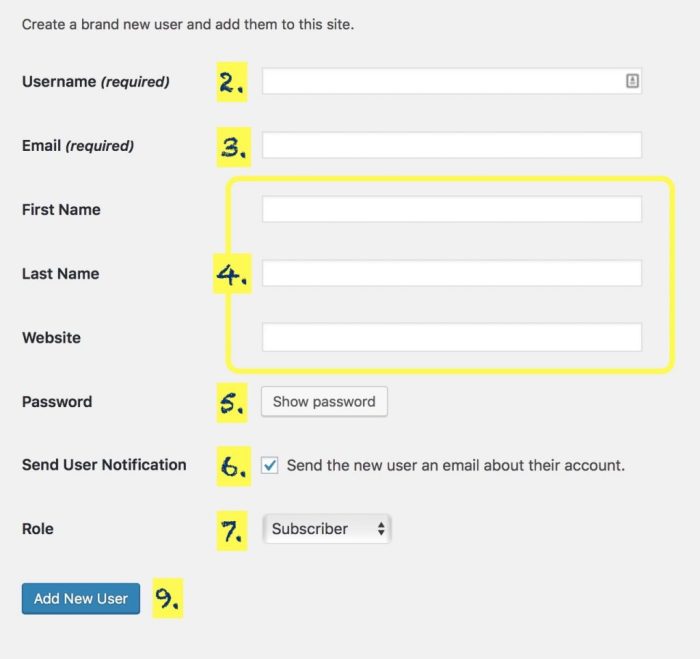
The process of adding a new user in WordPress involves providing essential information such as username, email address, password, and specifying their role. This structured approach ensures security and streamlined management of user access.
Methods for Adding New Users
WordPress offers several methods for adding new users, each catering to different scenarios. Understanding these methods can enhance your efficiency and adaptability.
- Using the “Users” Dashboard: This is the most common and straightforward method. Access the “Users” section within the WordPress dashboard to initiate the process. Click on the “Add New” button to begin creating a new user profile.
- Bulk User Creation: For managing numerous user accounts at once, WordPress provides an option for bulk user creation. This approach is particularly helpful when you need to onboard a large number of contributors or members simultaneously. This can be helpful for organizations or groups with numerous members who need access.
Steps for Adding a New User
This Artikels the standard procedure for creating a new user account, highlighting the crucial information required.
Adding a new user to your WordPress site is straightforward. Just head to Users > Add New in your WordPress dashboard. Interestingly, recent AEC marketing research released insights into industry trends, which might influence your user management strategy. For example, you might want to add specific user roles to manage different content types based on the research findings.
This research, available at aec marketing research released , provides a great basis for understanding the needs of your user base and tailoring your WordPress setup accordingly. After you’ve considered the research, it’s easy to add those new users with the same steps.
- Navigate to Users: Access the “Users” section within the WordPress dashboard.
- Click “Add New”: Find and click the “Add New” button to initiate the user creation process.
- Enter Username: Provide a unique username for the new user. This username will be used for login purposes. It’s essential to choose a username that is easy to remember and not easily guessed.
- Enter Email: Enter the user’s email address. This is how the user will receive login notifications and other communications related to the website.
- Set Password: Create a strong password for the new user. Encourage users to create complex passwords to ensure the security of their accounts.
- Assign Role: Select the appropriate role for the user from the available options. These roles define the level of access the user has to the website. Common roles include administrator, editor, author, contributor, and subscriber. Each role grants different permissions and capabilities.
- Review and Submit: Carefully review the entered information before clicking the “Add User” button to complete the creation process.
User Role Management
WordPress user roles are crucial for controlling access to various website features. Properly assigning roles ensures that users can only perform actions relevant to their responsibilities, maintaining website security and preventing unauthorized modifications. This meticulous control also fosters a streamlined workflow for administrators, reducing the potential for conflicts or errors.
Significance of Appropriate User Roles
Assigning appropriate user roles is fundamental to maintaining website security and functionality. Different roles grant varying levels of access to posts, pages, comments, and other website elements. This granular control prevents unauthorized access to sensitive information or accidental changes to critical content. Roles define a user’s capabilities within the WordPress ecosystem, promoting efficiency and accountability.
Managing Existing User Roles
WordPress offers a straightforward interface for managing existing user roles. Within the user management area, administrators can modify the permissions associated with each role. This allows for flexibility in tailoring access levels based on individual needs and responsibilities. Changes made to roles affect all users assigned to that specific role.
Impact of User Role Changes on Content Access and Permissions
Changes to user roles directly impact the content access and permissions of users assigned to those roles. For instance, a user with the ‘Author’ role can create, edit, and delete their own posts but cannot typically edit or delete posts created by other users. Similarly, changes to page permissions, comment permissions, and other features are instantly applied to all users holding that role.
Examples of Different User Roles and Their Associated Permissions (Comparison)
Different user roles have distinct permissions. The ‘Administrator’ role holds the highest level of authority, granting full access to all website functionalities, including creating, editing, and deleting any content. In contrast, the ‘Subscriber’ role has limited permissions, typically restricted to viewing content and commenting. The ‘Author’ role is a mid-level role with more autonomy than a ‘Subscriber’ but less than an ‘Administrator.’
User Roles and Permissions Table
| User Role | Post Permissions | Page Permissions | Comment Permissions |
|---|---|---|---|
| Administrator | Create, edit, delete any post | Create, edit, delete any page | Create, edit, delete any comment |
| Editor | Create, edit, delete any post | Create, edit, delete any page | Create, edit, delete any comment |
| Author | Create, edit, delete own posts | Create, edit, delete own pages | Create, edit, delete own comments |
| Contributor | Create, edit own posts | Create, edit own pages | Create, edit, delete own comments |
| Subscriber | View own posts | View own pages | Create own comments |
Managing User Profiles
WordPress user profiles allow you to customize the information associated with each user account. This includes everything from basic contact details to advanced settings, enabling administrators to tailor the user experience and manage access privileges effectively. A well-managed profile system ensures smooth operation and helps maintain a secure and organized WordPress site.Editing user profiles provides a powerful tool for administrators to maintain accurate and up-to-date information about their users.
This flexibility is crucial for ensuring that the site’s functionality and security are not compromised by outdated or incorrect data. Users can be easily identified and their roles can be adjusted based on the latest updates.
Editing User Profiles
User profiles can be accessed and edited through the WordPress dashboard. Navigating to the “Users” section within the dashboard will reveal a list of all registered users. Each user profile can be accessed by clicking on the username. The editing interface presents a comprehensive overview of the user’s details.
Modifying User Information
Various options are available for modifying user information within the profile. These options include changing the username, first name, last name, email address, display name, and user roles. This level of customization is crucial for ensuring that user information remains current and accurate, and that roles and responsibilities are properly assigned.
Changing User Passwords and Email Addresses
Modifying a user’s password or email address is a critical part of user profile management. The process involves accessing the user’s profile and locating the relevant fields for updating the password or email. Carefully consider the implications of changing these sensitive details, ensuring that the updates are accurate and that appropriate security measures are in place.
Enabling or Disabling User Accounts
Enabling or disabling user accounts is a powerful feature that allows administrators to control access to the site. This is particularly important for managing inactive or problematic accounts. Enabling or disabling a user’s account directly impacts their ability to log in and perform actions within the WordPress site.
User Profile Fields and Functions
This table Artikels the various user profile fields and their functions within WordPress. Understanding these fields helps administrators maintain accurate and comprehensive user records.
| Profile Field | Description | Example Value |
|---|---|---|
| Username | Unique identifier for the user, used for login. | john_doe |
| First Name | The user’s first name. | John |
| Last Name | The user’s last name. | Doe |
| The user’s email address. | [email protected] | |
| Display Name | The name displayed publicly. | John Doe |
| User Role | Defines the user’s permissions and capabilities. | Author |
| Avatar | Image displayed alongside user profiles. | A profile picture |
| Biographical Information | A description of the user. | Software developer with 5 years of experience. |
Security Considerations for User Accounts: How To Add New User In WordPress
WordPress user accounts are critical for managing access to your website’s content and functionalities. Robust security measures are essential to protect your site from unauthorized access, malicious activities, and data breaches. This section delves into the key security considerations for user accounts, providing practical guidance to enhance your WordPress site’s overall security posture.Strong passwords are a cornerstone of any security strategy.
Without them, your site’s sensitive data and functionality are vulnerable. Implementing robust password policies and educating users about the importance of strong passwords is a crucial first step.
Importance of Strong Passwords
Creating strong, unique passwords for each user account is paramount. Weak passwords are easily guessed or cracked, leaving your site susceptible to unauthorized access. Users should be encouraged to use a combination of uppercase and lowercase letters, numbers, and symbols. Password managers can significantly improve password security by generating and storing strong passwords securely.
Securing User Accounts
Beyond strong passwords, implementing additional security measures like multi-factor authentication (MFA) is highly recommended. MFA adds an extra layer of security by requiring users to provide a second form of verification, such as a code from a mobile device, in addition to their password. This significantly reduces the risk of unauthorized access even if a password is compromised.
Adding a new user to your WordPress site is a breeze, but understanding your website’s traffic is equally important. Knowing how to effectively use tools like Google Analytics is key to understanding user behavior and optimizing your site for conversions. For example, checking out 5 google analytics features for high quality analytics here can help you get the most out of your website’s data.
Once you’ve got your analytics sorted, you can confidently add new users and manage your website’s growth.
Regularly Reviewing User Access
Regularly reviewing user access privileges is essential to maintain security. As your website evolves, user roles and responsibilities might change. Outdated or unnecessary user permissions should be promptly revoked. This proactive approach ensures that only authorized users have access to sensitive information and functions.
Security Best Practices When Adding New Users
When adding new users, it’s crucial to adhere to strict security protocols. Always assign the least privileged role possible, granting only the necessary permissions for the user’s tasks. This principle of least privilege minimizes the potential damage if an account is compromised. Thoroughly vet new users and carefully consider their roles and access levels.
Security Tips for Managing User Accounts in WordPress
- Implement strong password requirements for all users, including administrators. Require users to change their passwords on a regular basis.
- Use multi-factor authentication (MFA) whenever possible. This adds an extra layer of security, even if a password is compromised.
- Review and revoke unnecessary user permissions periodically. Remove or restrict access for inactive users.
- Use a robust password manager to create and store strong, unique passwords for all users.
- Employ a security plugin to enhance your WordPress site’s security posture.
Troubleshooting Common Issues
WordPress user management, while generally straightforward, can sometimes present unexpected hurdles. This section delves into common problems encountered when adding or managing users, offering practical solutions to get your site back on track. Understanding these issues can prevent frustration and ensure a smooth user onboarding process.
Common User Account Creation Problems
Issues with user account creation can stem from various factors, including incorrect input, plugin conflicts, or server-side problems. Identifying the source of the problem is crucial for effective troubleshooting.
- Incorrect Input Data: Ensuring accurate user information is paramount. This includes correctly filling out fields such as username, email address, and password. Validation errors often appear on the user registration page, providing specific clues on the nature of the problem. Double-checking input and adhering to WordPress’s validation rules are critical.
- Plugin Conflicts: Certain plugins may interfere with WordPress’s user management system. This can manifest as inability to create users, or unexpected behavior during the process. Temporarily deactivating plugins one by one can help isolate the conflicting plugin. If the issue persists, review the plugin’s documentation or contact the plugin developer for support.
- Server-Side Issues: Technical problems on the server hosting your WordPress site can hinder user account creation. Database errors, file system issues, or insufficient server resources can all contribute. If you suspect server-side problems, contacting your hosting provider for assistance is recommended. They can diagnose the root cause and provide appropriate solutions.
Resolving Issues with Adding New Users
A structured approach to troubleshooting user addition problems ensures a faster resolution. Thorough checks and systematic elimination of potential causes lead to effective problem solving.
- Check Input Fields: Review all input fields for any errors, ensuring correct formatting and required data. Pay close attention to error messages displayed on the screen; these often contain valuable hints about the source of the problem. Examples include incorrect email formats, or missing required fields. This is a simple but often overlooked step.
- Deactivate Plugins: Temporarily disable all plugins to determine if a plugin is causing the issue. This can be done through the WordPress admin panel. If user account creation resumes after deactivation, then a plugin conflict is suspected. This allows for isolation of the problem.
- Check Server Logs: Consult server logs for error messages. These logs can provide clues about potential server-side issues. Look for specific error codes or messages that relate to database or file system errors. This detailed examination can offer valuable insight.
User Account Management Problems
Maintaining a well-organized user system is vital for site security and functionality. Addressing problems in user account management ensures seamless operations.
- Permissions Errors: Incorrect user roles or permissions can lead to unexpected behavior. Verify that the user has the necessary privileges to perform desired actions. Examples include preventing access to specific pages or features.
- Password Recovery Issues: If users experience difficulty recovering their passwords, ensure that the email address used for password recovery is valid and the user’s email address is properly set up.
- Profile Modification Errors: Check for any restrictions or limitations on user profile modifications. These limitations can stem from theme configurations or plugin restrictions.
Common Errors Encountered While Adding Users
Various errors might arise during the user addition process. Identifying and resolving these errors efficiently is critical for a smooth user management experience.
- “Username already exists” error: This error signifies that a user with the same username already exists in the database. Review existing usernames to ensure uniqueness. This common error is easily resolved by choosing a different username.
- “Invalid email address” error: This error indicates an improperly formatted email address. Confirm the email address format adheres to standard email address syntax. Correct the format to resolve the error.
- “Database error” error: This error typically suggests an issue with the WordPress database. This could be due to server-side issues or corrupted data. Consult your hosting provider or database administrator for assistance.
Ultimate Conclusion
Adding new users to your WordPress site is now a straightforward process, thanks to this comprehensive guide. From initial account creation to ongoing user management, this post has covered the key aspects. Remember to prioritize security and assign roles carefully to maintain control and protect your website’s integrity.